
Once you have purchased Bright Dashboard Pro, you can access your plugin files and license keys at any time through your account dashboard.
Downloading the Plugin
- Log in to your brightsol.nl account.
- Navigate to the Downloads tab.
- You will see a list of your available products. Click the button next to Bright Dashboard Pro to download the latest `.zip` file.
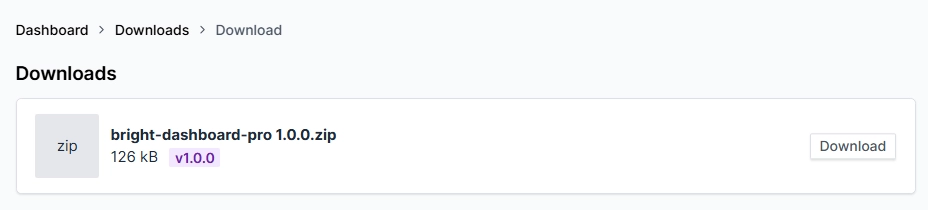
Tip: We always recommend keeping a copy of the latest ZIP on your agency’s internal storage for quick deployment to new client sites.
Finding Your License Key
Your license key is required to activate the plugin and enable automatic updates.
- In your account, go to the Downloads tab.
- Locate your active purchase of Bright Dashboard Pro.
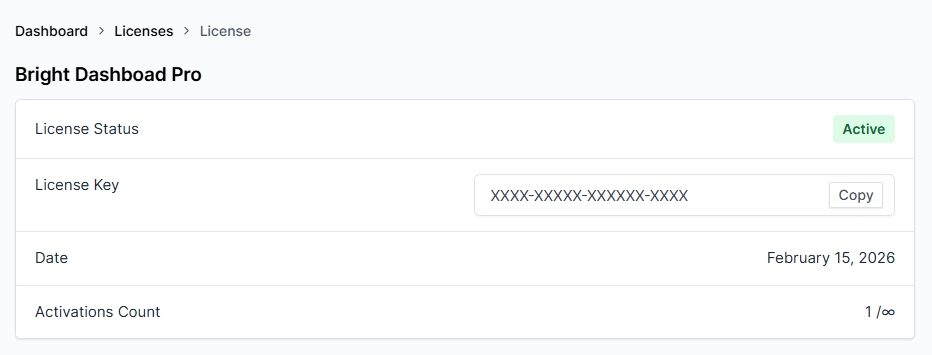
- Under License Keys you can click on the active license with available activations.
- Locate the License Key row, and click the Copy button next to the license key to copy it to your clipboard.
Managing Activations
Each license has a limit on how many sites it can be active on simultaneously (e.g., 5 sites for Starter, Unlimited for Agency).
- View Active Sites: In the license section, you can see exactly which URLs are currently using your key.
- Remote Deactivation: If you no longer manage a specific site, you can “Deactivate” it remotely from your account dashboard to free up a slot for a new project.

Updates
Bright Dashboard Pro delivers updates directly to your WordPress admin.
- Automatic Updates: Once your license is active, you will see update notifications under Plugins just like any other WordPress plugin.
- Manual Update: If you prefer, you can always download the latest ZIP from your account and upload it to your site to overwrite the old version.