
Welcome to Bright Dashboard Pro! This guide will walk you through the simple process of installing the plugin and activating your license so you can start customizing your client dashboards.
1. Download the Plugin
After your purchase, you can find your plugin files in the Customer Dashboard.
- Log in to your account at brightsol.nl/customer-account.
- Navigate to the Downloads section.
- Click the download link next to Bright Dashboard Pro to save the `.zip` file to your computer.
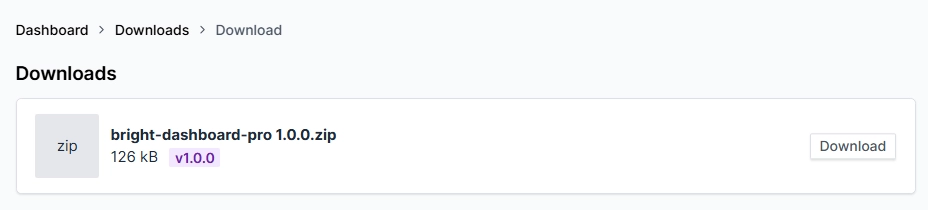
Note: Do not unzip the file. WordPress requires the plugin to be in its original `.zip` format for a successful upload.
2. Install via WordPress Admin
Once you have the `.zip` file, head over to your WordPress website to install it.
- Log in to your WordPress dashboard.
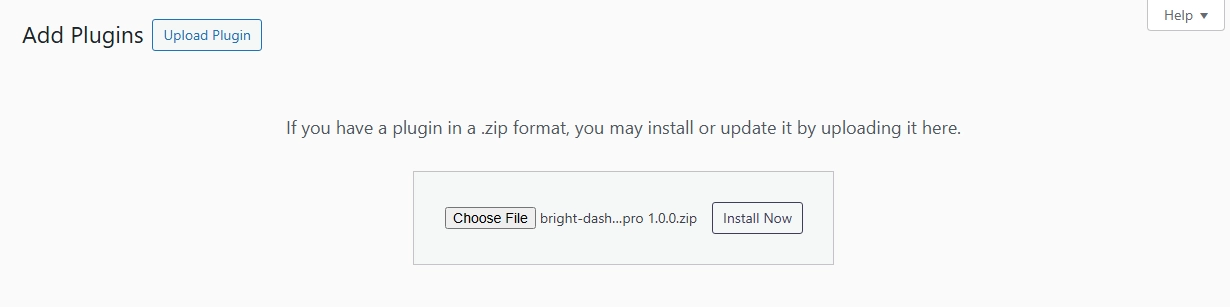
- Navigate to Plugins > Add New Plugin.
- Click the Upload Plugin button at the top of the page.
- Click Choose File and select the `bright-dashboard-pro.zip` file you downloaded.
- Click Install Now. 6. After the installation is complete, click the Activate button.
3. Activate Your License
To receive automatic updates and access all Pro features, you need to activate your license key.
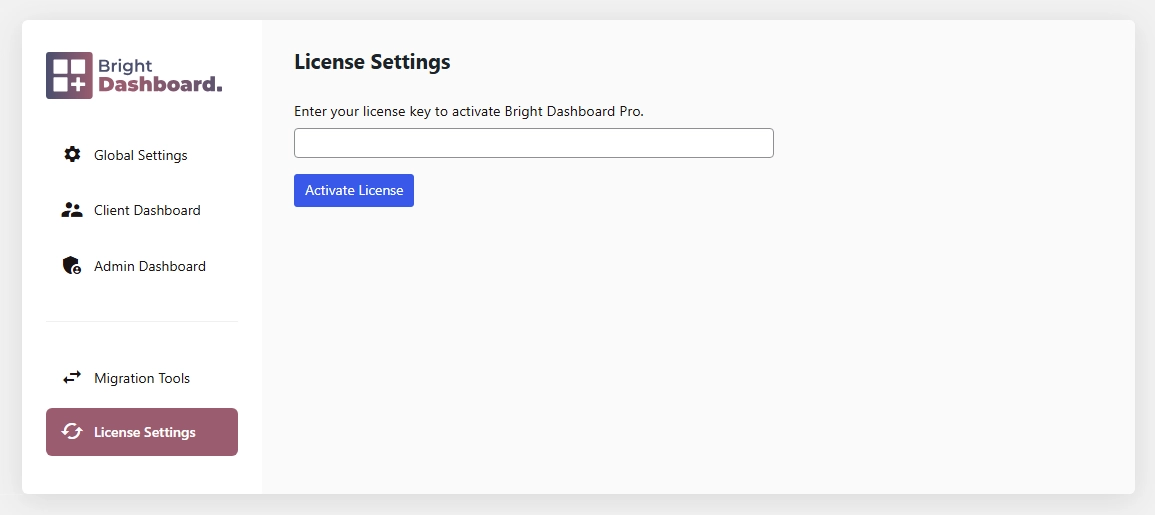
- In your WordPress menu, navigate to Bright Dashboard > License Settings.
- Paste your License Key into the text field. (You can find your key in your purchase confirmation email or the customer account).
- Click Activate License.
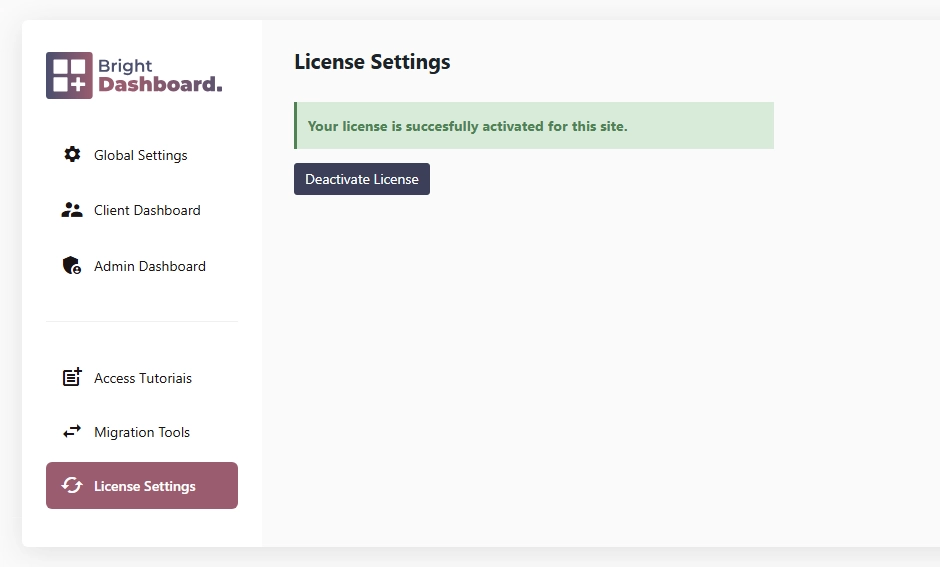
Once activated, you will see a green “Active” status, confirming that your plugin is ready to go!
Next Steps
Now that the plugin is active, you’re ready to create your first custom dashboard.
Check out the Quick Start Guide.